ChestShop Tutorial
With ChestShop, you can create your own shops using signs and chests, making it easy to buy and sell items.
Follow this step-by-step guide to set up your shop efficiently.
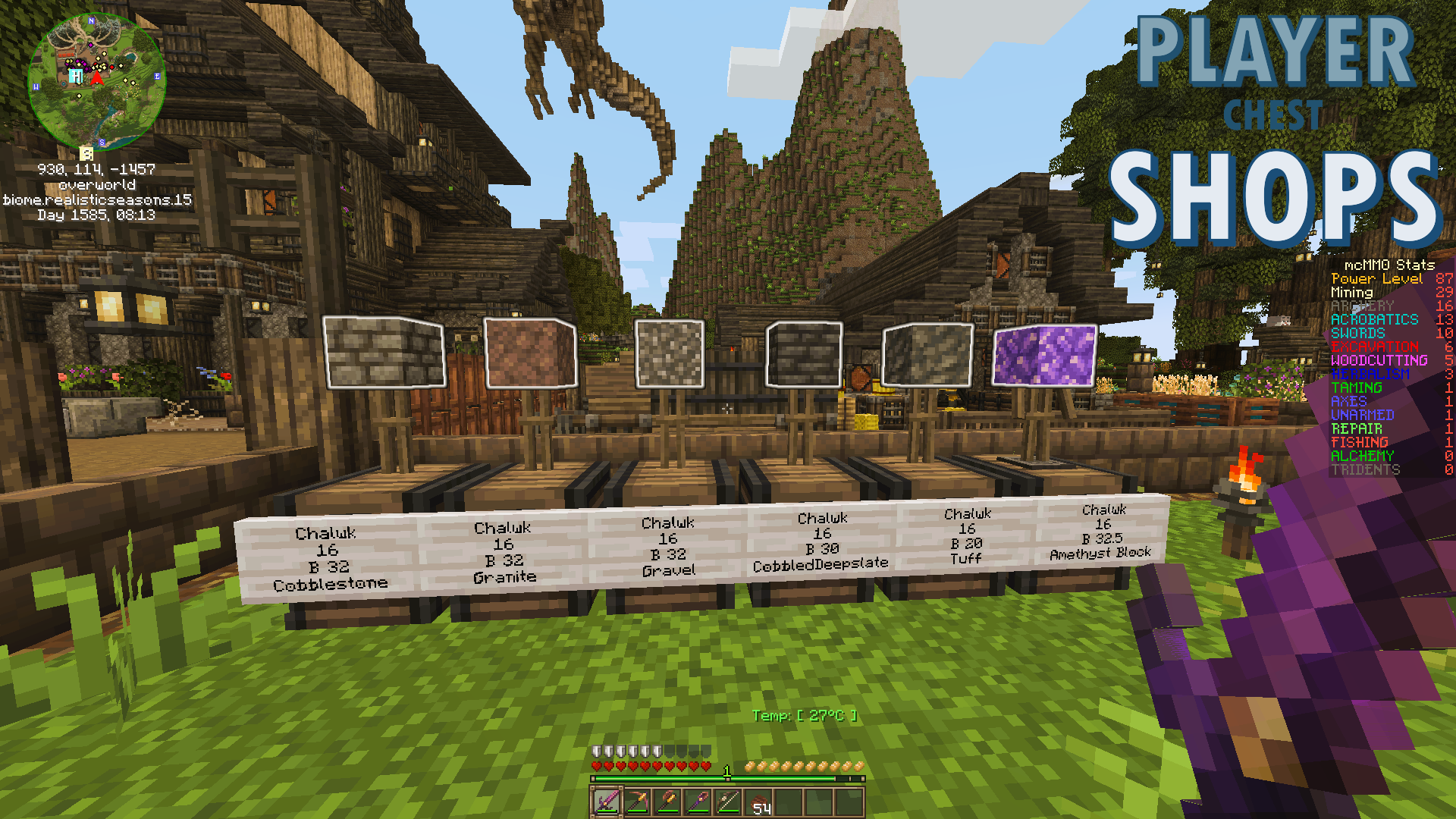
Table of Contents
- Loading table of contents...
Step 1: Build Your Shop
Begin by constructing a designated area for your shop. Be creative as you can, an appealing shop design can attract more
customers!
Pro Tip: Use these materials for best results:
Oak PlanksGlass PanesItem FramesGlowstone
Example Shop Design (click to expand)
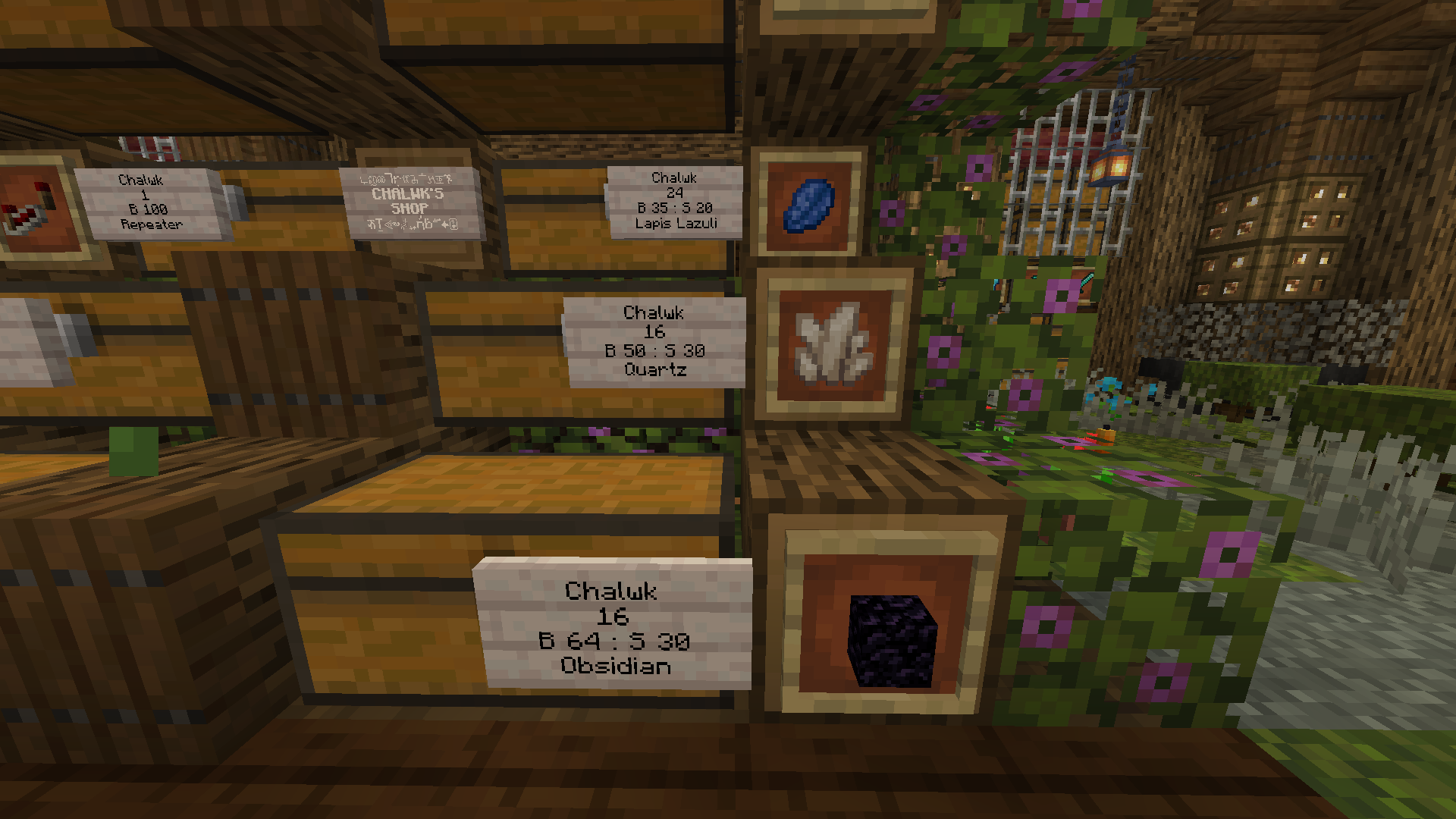
Step 2: Place a Chest
Position your chest in an accessible location. Ensure clear line of sight to the sign area.
Step 3: Stock the Chest
Fill the chest with the items you wish to sell. Organizing your stock efficiently will make it easier for customers to
find what they need. For example:
- High-demand resources (
Diamonds,Netherite) - Building materials (
Oak_Logs,Stone) - Rare items (
Enchanted_Golden_Apples,Dragon_Egg) - Common items (
Iron_Ingot,Gold_Ingot) - Consumables (
Apple,Bread)
Step 4: Create a Sign
Create your shop sign with this exact formatting:
| Line | Value | Description |
|---|---|---|
| 1 | Owner Name |
Auto-filled by the system. |
| 2 | [Quantity] |
Number of items per transaction (1-64). |
| 3 | [Price] |
Format: B <Amount> or B <Buy Price> : S <Sell Price>. |
| 4 | [Item Name] |
Item name or ID. Use /iinfo to find the correct ID. |
Example 1: Basic Shop (buy only)
| Line | Value | Description |
|---|---|---|
| 1 | Chalwk |
Auto-filled. |
| 2 | 16 |
Item quantity. |
| 3 | B 100 |
Players can buy 16 items for 100. |
| 4 | Diamond |
Item name (must match exactly). |
Example 2: Advanced Shop (buy & sell)
| Line | Value | Description |
|---|---|---|
| 1 | Chalwk |
Auto-filled. |
| 2 | 16 |
Item quantity. |
| 3 | B 100 : S 25 |
Players buy 16 items for 100 or sell 16 items for 25. |
| 4 | Diamond |
Item name (must match exactly). |
Example 3: Advanced Configuration (price formats)
| Format | Description | Example |
|---|---|---|
| B 100 | Shop sells to players for 100 each | B 100 |
| S 50 | Shop buys from players for 50 each | S 50 |
| B 100 : S 25 | Dual pricing (Buy/Sell) | B 100 : S 25 |
| ? 75 | Auto-convert to best deal | ? 75 |
💡 Pro Tip: The colon : must have spaces on both sides when using dual pricing!
Step 5: How Customers Buy or Sell Items
| Action | Click Type | Transaction |
|---|---|---|
| Purchase Single | Right Click |
🔼 Takes 1 transaction from chest |
| Purchase Stack | Shift + Right Click |
🔼 Takes max stacks (inventory space) |
| Sell Single | Left Click |
🔽 Adds 1 transaction to chest |
| Sell Stack | Shift + Left Click |
🔽 Adds max stacks (chest space) |
💡 Pro Tip: You can hold Shift while clicking to buy or sell multiple items at once.